The Backup Gap That Kills Friday Nights
You set up Coolify. You self-host Plausible, Formbricks, n8n, and a Ghost blog. You feel invincible. Then your VPS provider shuts down a region, or you run rm -rf in the wrong directory. No backups. Data gone.
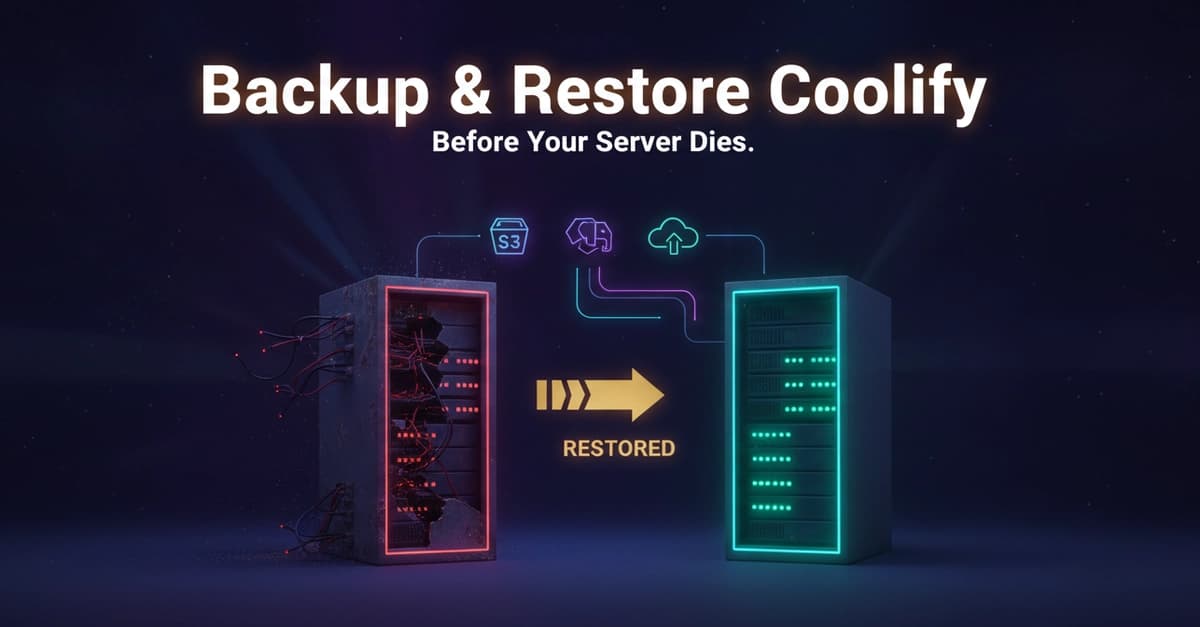
This guide covers the complete Coolify backup and restore process: S3 storage setup → automated backups → full database restore on a new server. Takes about 12 minutes of actual work.
Step 1: Set Up an S3 Bucket (5 Minutes)
Coolify sends backups to any S3-compatible storage. Options:
- Cloudflare R2 (free egress, great for small backups)
- AWS S3
- Backblaze B2
- DigitalOcean Spaces
This guide uses Cloudflare R2. Create a bucket (e.g., coolify-backup), generate an API token with read/write permissions, and copy the Access Key and Secret Key.
In Coolify, go to S3 Storage → Add new storage. Paste the endpoint, region, access key, secret key, and bucket name. Click Validate Connection. It runs a ListObjects call under the hood. If you see ✅, you're good.
Step 2: Configure Automated Backups (2 Minutes)
Navigate to Settings → Backup:
- Enable S3 Backup Enabled and Backup Enabled
- Select your S3 storage source
- Set frequency — daily is solid. Multiple times per day if you're paranoid (no judgment).
Trigger a manual backup immediately to test. Verify the .pgdump file appears in your S3 bucket (path like data/coolify/backups/coolify/...).
Step 3: Save Your APP_KEY (Most Critical Step)
Coolify encrypts sensitive data (passwords, SSH keys, env vars) using APP_KEY. Without it on the new server, your backup is a locked vault with no key.
SSH into your current server and run:
cat /data/coolify/source/.env
You'll see something like:
APP_KEY=base64:abcXYZ123...Kne==
Copy this entire value and store it in a password manager. Losing this key + your server = backup worthless.
Step 4: Prepare the New Server
Install Coolify fresh:
curl -fsSL https://cdn.coollabs.io/coolify/install.sh | sudo bash
Navigate to the new server's IP. You'll see the Register page — expected for a fresh install. Don't register yet. Verify Coolify is running:
sudo docker ps
You should see coolify-db (PostgreSQL container) running.
Step 5: Transfer the Backup File
Download your .pgdump from S3, then copy it to the new server:
# Option 1: SCP
scp coolify-backup.pgdump user@new-server-ip:/home/user/
Option 2: Direct download
wget "https://your-r2-url/path/to/backup.pgdump"
## Step 6: Restore the Database

Run this command (replace path with your backup file location):
```bash
sudo docker exec -i coolify-db pg_restore \
  --username coolify \
  --verbose \
  --dbname coolify \
  < /path/to/your-coolify-backup.pgdump
Warnings like "relation already exists" are normal — the fresh install created base tables, and the restore notes conflicts but still works.
Step 7: Verify Login
Refresh the new server's IP. Instead of Register, you should see a Login page. Use your old Coolify credentials. Log in. Your projects, apps, services, and databases should appear.
If you click into a project and get a 500 Internal Server Error — that's the APP_KEY mismatch. Fix it below.
Step 8: Fix 500 Error with APP_PREVIOUS_KEYS
The new Coolify instance has a new APP_KEY. Your database is encrypted with the old one. Tell Coolify about the old key:
- Navigate to the .env file:
sudo chown -R $USER /data/coolify
cd /data/coolify/source
- Edit
.envwithnano:
nano .env
- Add this line (replace with your old APP_KEY):
APP_PREVIOUS_KEYS=base64:your-old-app-key-that-ends-with-Kne==
- Save and exit:
Ctrl+X,Y,Enter - Reinstall Coolify:
curl -fsSL https://cdn.coollabs.io/coolify/install.sh | sudo bash
Wait for containers to restart. Refresh your browser — the 500 error should be gone.
Step 9: Verify Everything
Check:
- Projects, credentials, deployment history, logs, S3 storages — all present.
- Everything exactly where you left it.
TL;DR Cheatsheet
- Set up S3 storage in Coolify (Cloudflare R2 recommended)
- Enable automated backups in Settings → Backup
- Save your APP_KEY from
/data/coolify/source/.env - On new server: install fresh Coolify
- Transfer backup
.pgdumpfile - Restore:
docker exec -i coolify-db pg_restore --username coolify --dbname coolify < backup.pgdump - Login with old credentials
- If 500 error: add
APP_PREVIOUS_KEYSto.env, reinstall Coolify
Lessons Learned
- ❌ Wait for server to die before thinking about backups
- ✅ Set up automated backups before you need them
- ❌ Forget to save APP_KEY
- ✅ Save it in a password manager today
- ❌ Assume backup is working
- ✅ Run a manual backup and verify it appeared in S3
Go set up your backups now. Don't finish reading and forget.