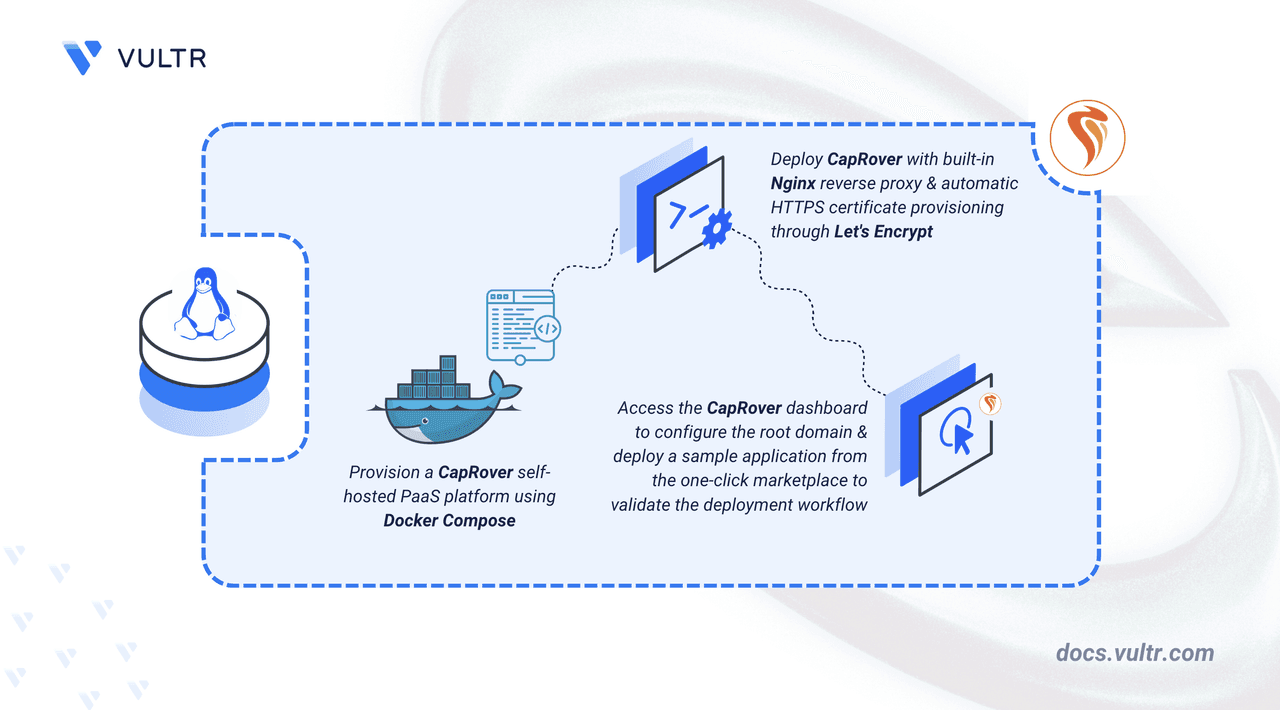
CapRover: Self-Hosted PaaS on Ubuntu 24.04
CapRover is an open-source Platform as a Service (PaaS) that automates deployment using Docker containers and an Nginx reverse proxy. It initializes a Docker Swarm cluster on your server to orchestrate containers, manage networking, and handle SSL certificate provisioning through Let's Encrypt. This guide walks through deploying CapRover 1.14.1 with Docker Compose on Ubuntu 24.04, configuring HTTPS, and deploying Uptime Kuma via the one-click app marketplace.
Prerequisites
- A Linux server with a non-root sudo user.
- Docker and Docker Compose installed.
- A wildcard DNS A record (e.g.,
*.apps.example.com) pointing to your server's public IP. Do NOT use Cloudflare proxy (orange cloud) — CapRover doesn't support it.
Set Up the Environment
Create a project directory and .env file:
mkdir caprover && cd caprover
nano .env
Add these variables:
ACCEPTED_TERMS=true
DEFAULT_PASSWORD=StrongPassword-321
CAPROVER_ROOT_DOMAIN=apps.example.com
Replace StrongPassword-321 with a strong password and apps.example.com with your domain. ACCEPTED_TERMS is mandatory — CapRover refuses to start without it. The default password captain42 is publicly known and actively scanned.
Docker Compose Configuration
Create docker-compose.yml:
services:
  caprover:
    image: caprover/caprover:1.14.1
    ports:
      - "80:80"
      - "443:443"
      - "3000:3000"
    environment:
      ACCEPTED_TERMS: "${ACCEPTED_TERMS}"
      DEFAULT_PASSWORD: "${DEFAULT_PASSWORD}"
    volumes:
      - /var/run/docker.sock:/var/run/docker.sock
      - /captain:/captain
Ports: 80 (HTTP/ACME), 443 (HTTPS), 3000 (initial dashboard). The Docker socket mount allows CapRover to manage Swarm services. /captain stores persistent data: SSL certs, app configs, Nginx settings, and the built-in Docker registry.
Configure Firewall
Open required ports with UFW:
sudo ufw allow 80,443,996,7946,4789,2377/tcp
sudo ufw allow 3000/tcp
sudo ufw allow 7946,4789,2377,443/udp
sudo ufw enable
Ports:
80/tcp,443/tcp+udp: HTTP/HTTPS traffic. UDP on 443 supports HTTP/3.3000/tcp: Initial dashboard (close after HTTPS setup).996/tcp: Built-in Docker registry.7946/tcp+udp: Swarm node discovery.4789/tcp+udp: Overlay network traffic (VXLAN).2377/tcp+udp: Swarm cluster management.
Start CapRover
docker compose up -d
On first startup, CapRover initializes a Docker Swarm cluster and starts three services: captain-captain, captain-nginx, and captain-certbot. Verify with:
docker service ls
If you see "This node is not a swarm manager", wait a few seconds and retry. Check initialization with:
docker service logs captain-captain --tail 20
Wait for "Captain is initialized and ready to serve you" before proceeding.
Access Dashboard & Configure HTTPS
- Open
http://YOUR_SERVER_IP:3000in a browser. Log in with the password from.env. - Scroll to "CapRover Root Domain Configurations". Enter your root domain (e.g.,
apps.example.com) and click Update Domain. - Click Enable HTTPS. Enter your email for Let's Encrypt notifications. Wait for confirmation.
- Click Force HTTPS. This is irreversible — test the HTTPS URL first.
- Close port 3000:
sudo ufw delete allow 3000/tcp. - Change your dashboard password in Settings > Change Password.
Deploy a Sample App: Uptime Kuma
- In the dashboard, go to Apps > One-Click Apps/Databases.
- Search for "Uptime Kuma" and select it.
- Set an app name (e.g.,
uptime) and click Deploy. - CapRover provisions a subdomain (e.g.,
uptime.apps.example.com) and an SSL certificate automatically. - Access the app at its URL. Uptime Kuma is a self-hosted monitoring tool for websites and APIs.
Why This Matters
CapRover gives you a Heroku-like experience on your own server with no per-container costs. It automates Docker Swarm, Nginx, and Let's Encrypt, letting you focus on apps. The one-click marketplace includes many popular tools (N8n, NocoDB, etc.), making self-hosting practical for small teams and indie developers.
Editor's Take
I've used CapRover in production for over a year across two servers. The setup is straightforward, but the wildcard DNS requirement is a gotcha — you must own a domain and configure it correctly. I've had Let's Encrypt rate-limit issues when testing domain configs, so verify DNS propagation before enabling HTTPS. The one-click apps are convenient but limited; for custom Docker images, you'll need to use the command-line tool or manual Swarm configs. Overall, it's a solid alternative to paid PaaS if you're comfortable managing a server.
Developer Insights
- Use a strong custom password in
.env— the defaultcaptain42is a known attack vector. - Verify DNS propagation with
dig myapp.apps.example.combefore enabling HTTPS. - After HTTPS is live, close port 3000 immediately to reduce attack surface.